On this guide
Get started
Manage
Workspaces
A workspace is a container for projects, AI keys, hosting, members, and billing. Every account starts with a personal workspace; a paid plan lets you create team workspaces and invite teammates.
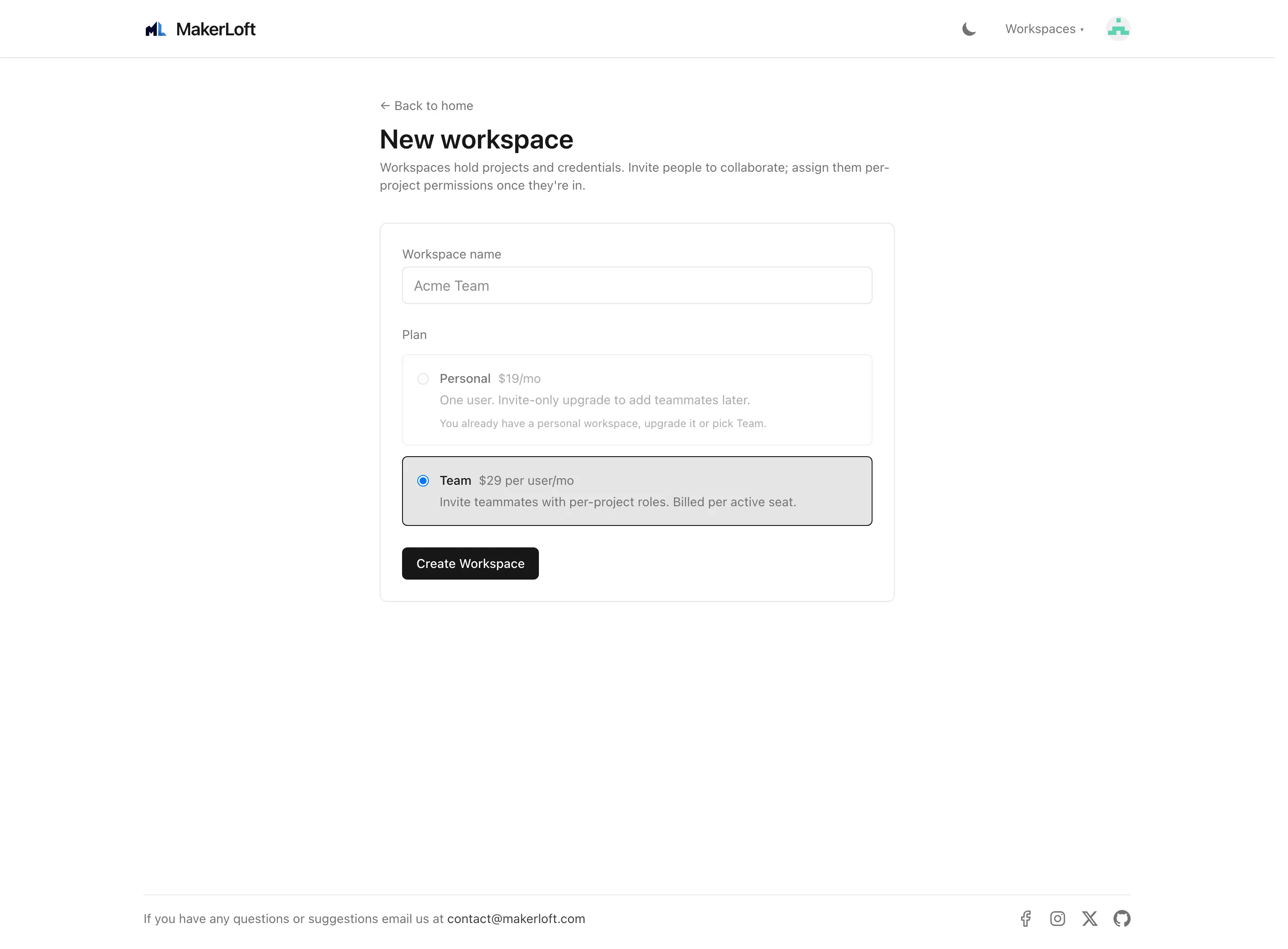
Workspace overview
The workspace page is the home for everything inside a workspace. The project list is in the centre; "Create project" sits at the top right; the workspace switcher in the top nav lets you jump between workspaces you own and workspaces you have been invited to.
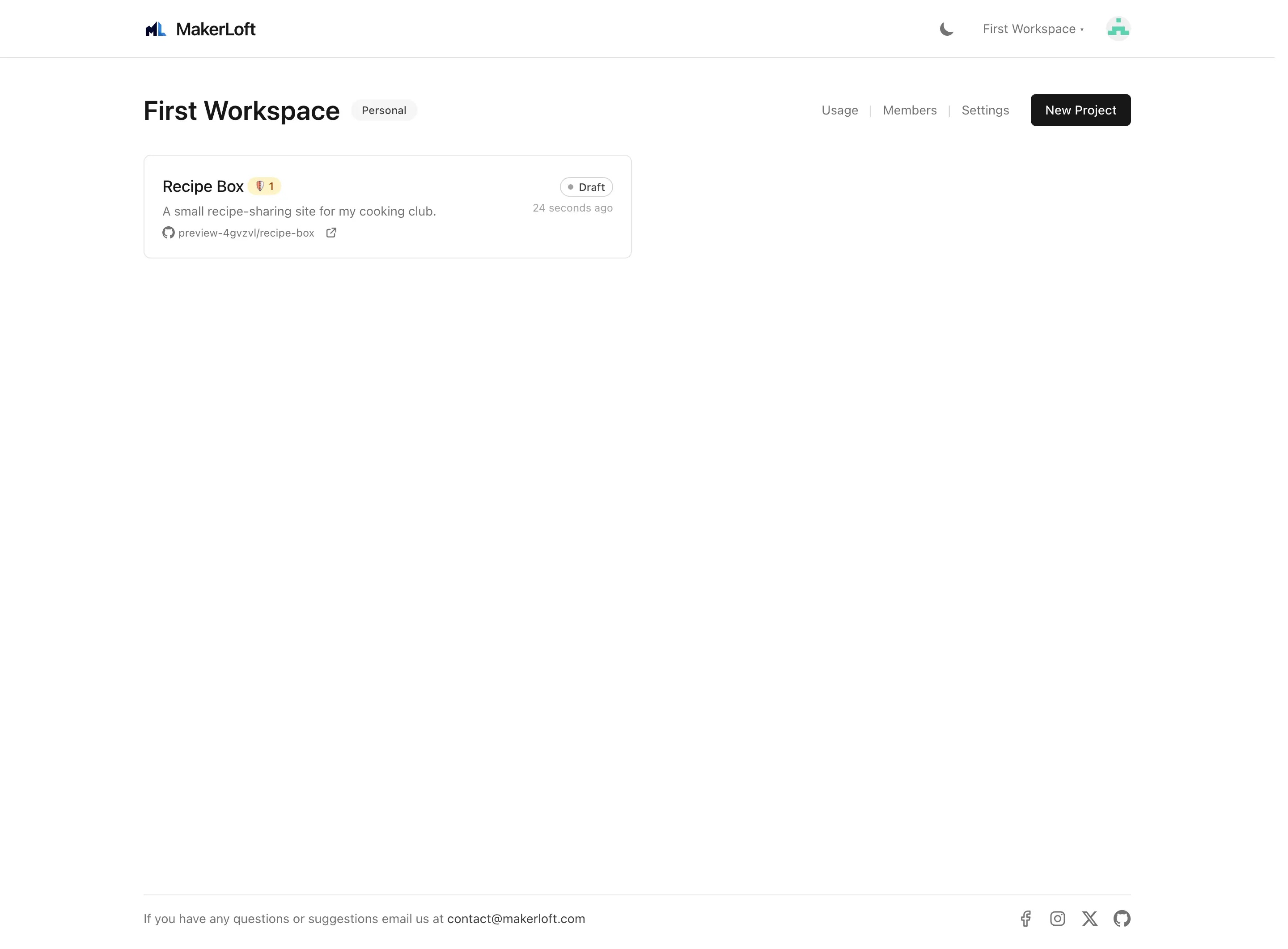
Creating a workspace
From the workspace switcher, choose "New workspace". Pick a name (any short label works; you can rename later). The name becomes part of the URL of every project inside the workspace.
Personal workspaces are free; team workspaces start on a paid plan after a short trial. See "Billing and usage".
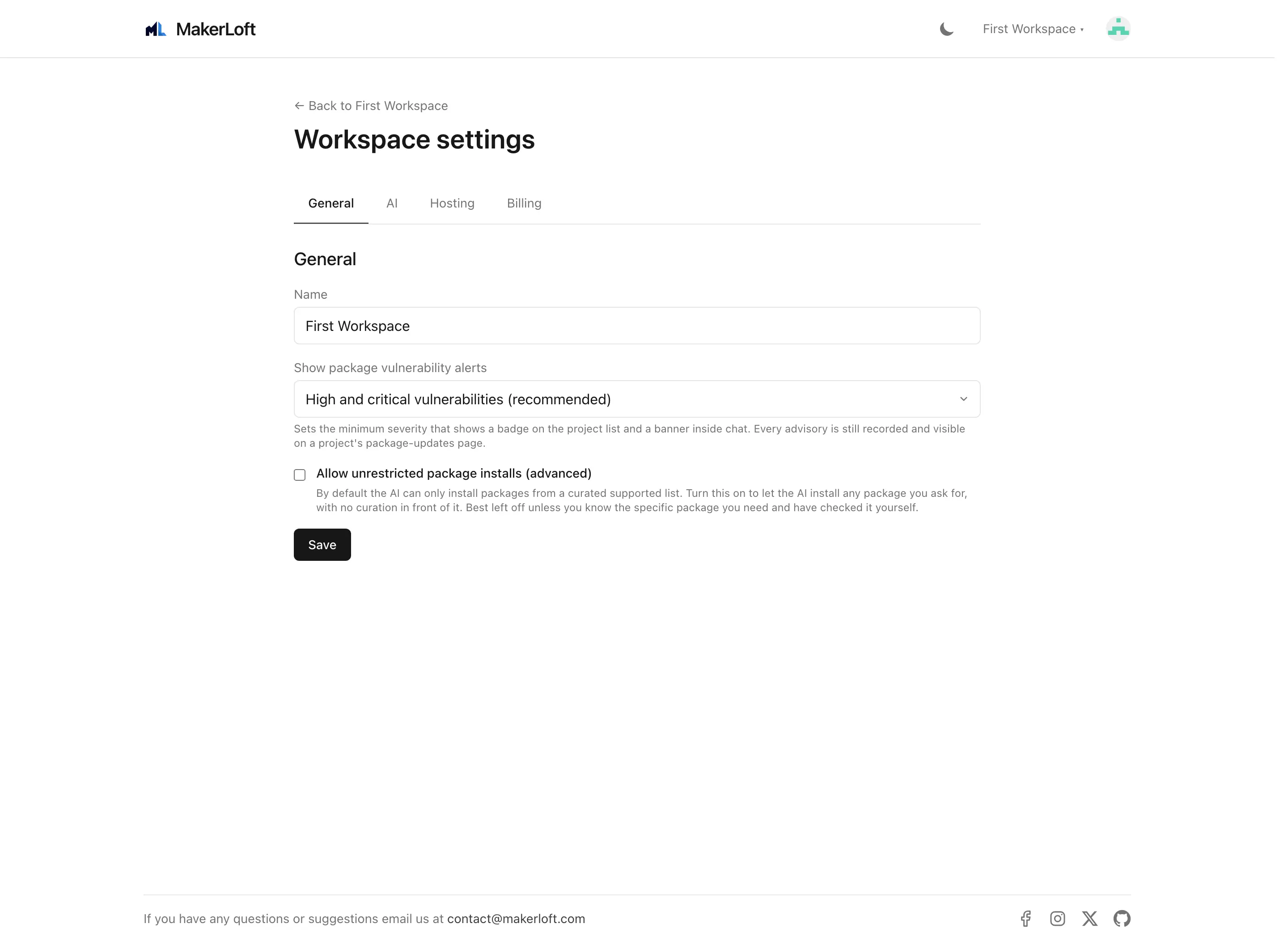
Settings · General
Rename the workspace, set how loud the package vulnerability alerts should be, and decide whether to allow packages outside the curated list.
- Name. The label that shows in the switcher and in URLs.
- Vulnerability alert level. Choose the lowest severity you want to see. The dropdown offers Critical only, High and critical (recommended), Medium / high / critical, and All vulnerabilities. Severities below the threshold are scanned but hidden from the alerts panel.
- Allow unrestricted packages. By default, the agent installs only from a curated list. Turn this on if you need a package outside the list; the agent will warn you each time it installs an unrestricted package.
- Delete workspace. The danger button at the bottom of the General tab. Confirms by typing the workspace name. Removes every project, credential, and member; the GitHub repositories and DigitalOcean apps stay where they are.
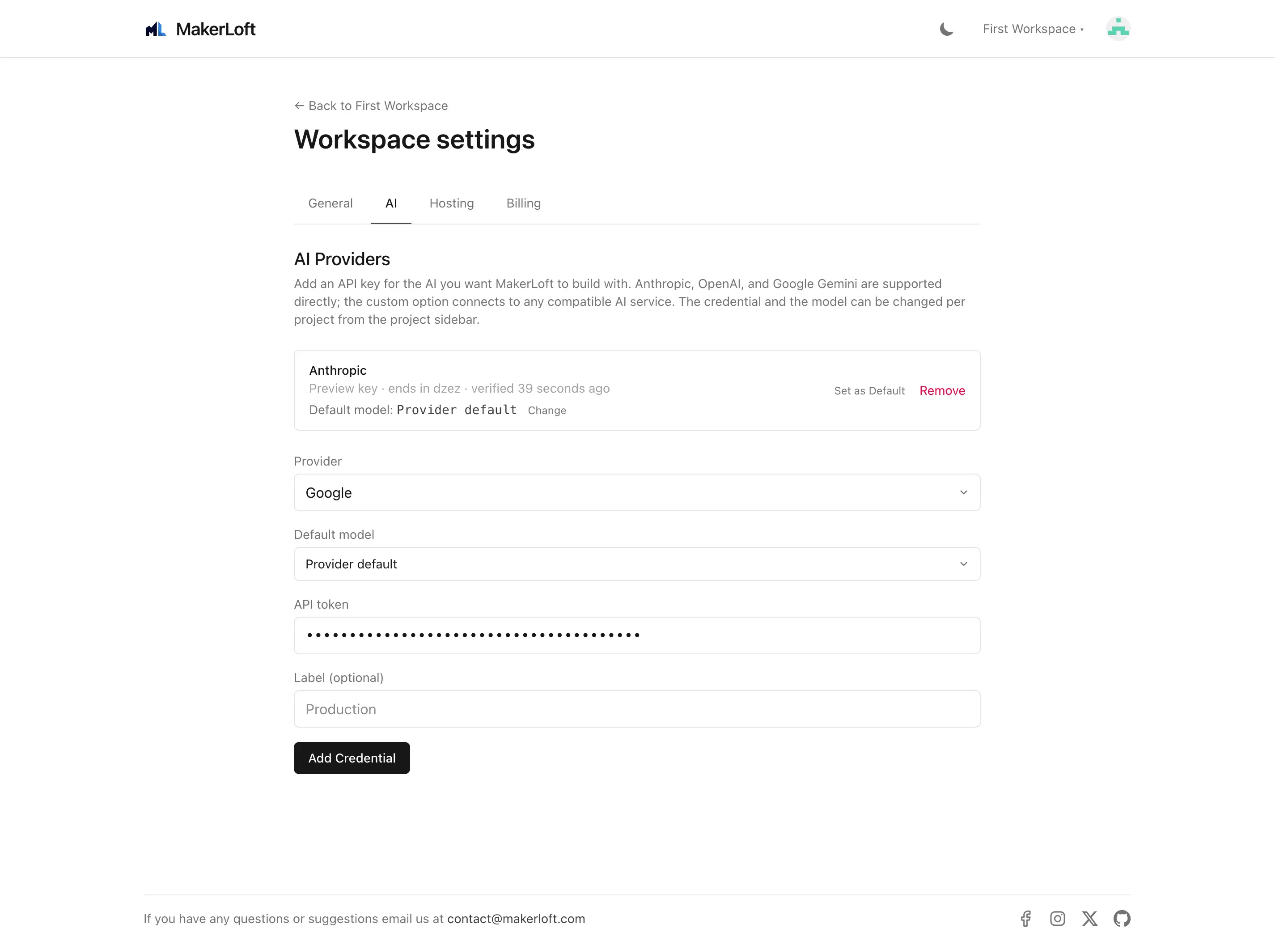
Settings · AI
Connect AI providers (Anthropic, OpenAI, Google, or a custom OpenAI-compatible endpoint), label them, and pick a default. Every project in this workspace uses the workspace default unless the project sets its own.
See also: AI providers.
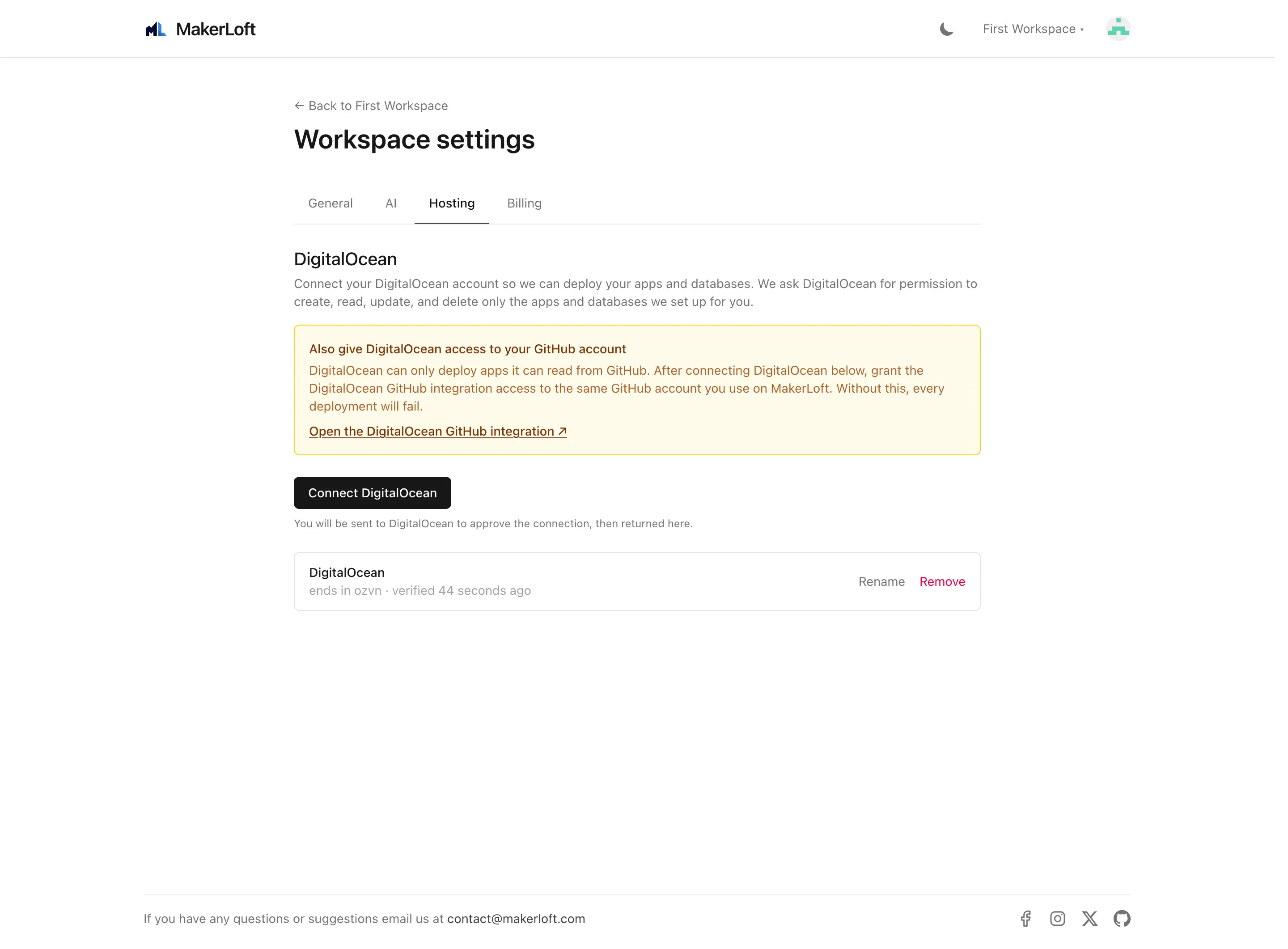
Settings · Hosting
Connect your DigitalOcean account here. Click "Connect DigitalOcean" and approve the permission scope on the DigitalOcean OAuth screen; you land back on this tab with a token attached. Every deployment target in the workspace deploys against the connected DigitalOcean team.
You can disconnect at any time. Disconnecting does not tear down deployed apps; it just removes the credential, so future deploys will fail until you reconnect or add a new credential.
Workspaces without a DigitalOcean credential can still host static-site projects on GitHub Pages; the credential is only required when a project's hosting mode is DigitalOcean.
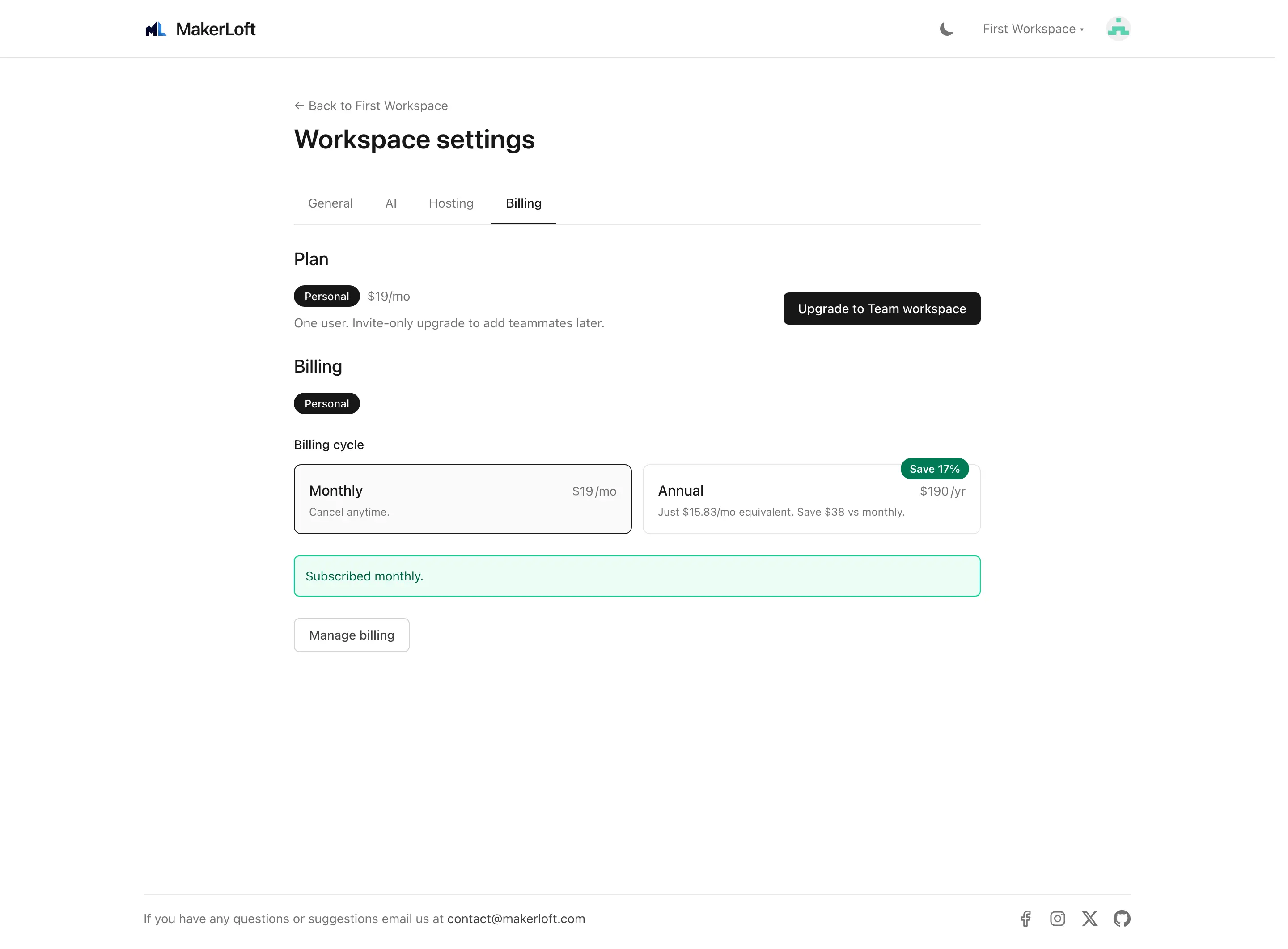
Settings · Billing
See the current plan, days left in the trial, and the next charge date. Switch between monthly and annual at any time. Upgrade to Team to add more seats.
See also: Billing and usage.
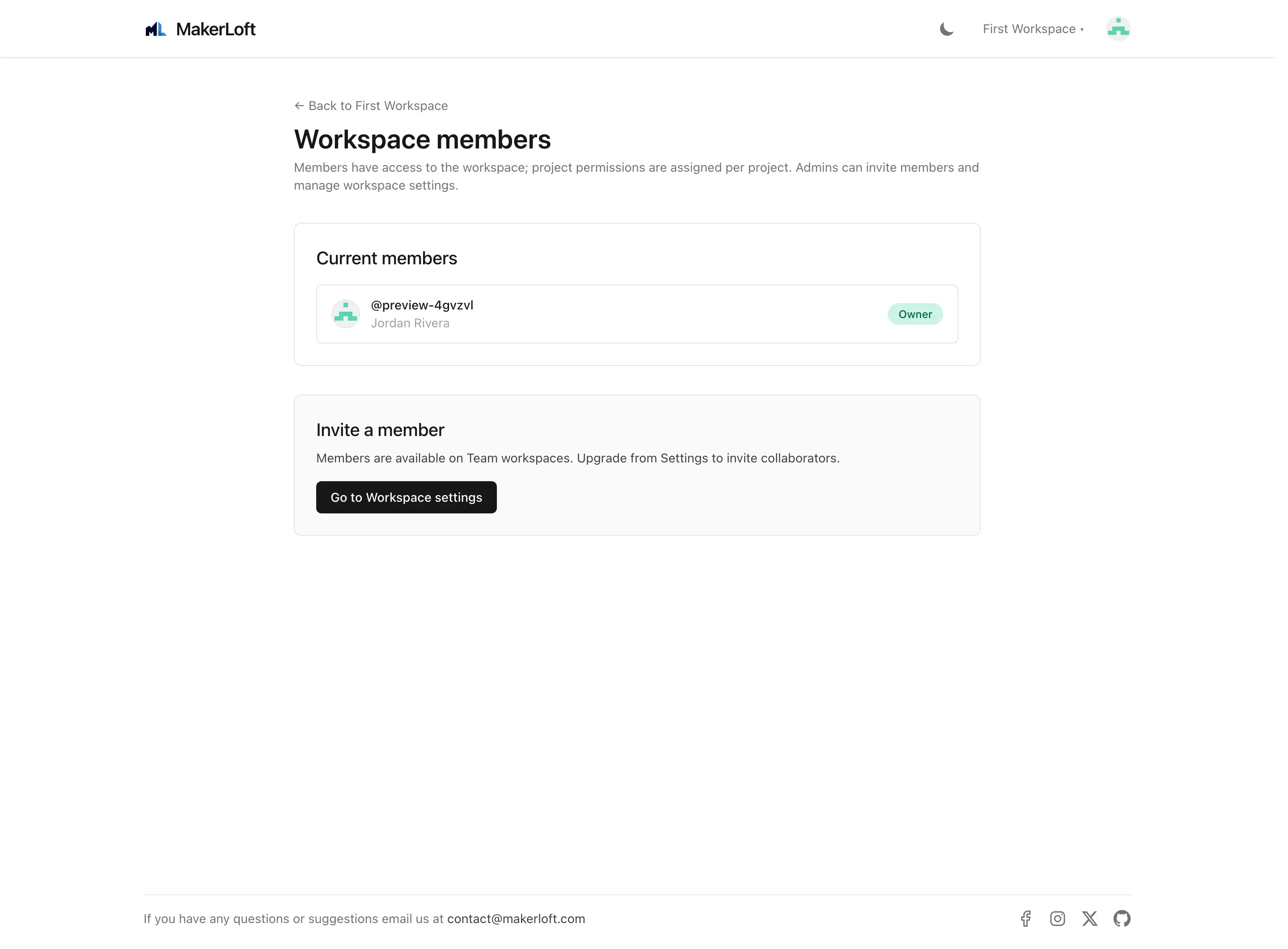
Members
On a Team workspace, invite teammates by GitHub username. Pick a role; the invitee sees the workspace appear in their switcher next time they sign in.
- Member. Can see and chat with projects they are added to. Can deploy. Cannot delete projects or change billing.
- Admin. Member, plus can add or remove other members and edit workspace settings. Cannot change billing.
The owner is whoever created the workspace. Ownership transfer is by request to support; we keep this manual to prevent accidental hand-offs.
Change a member's role from the role column on the members table at any time. Remove a member with the Remove button on their row; the membership is soft-deleted, so a recent removal can be restored if it was a mistake.
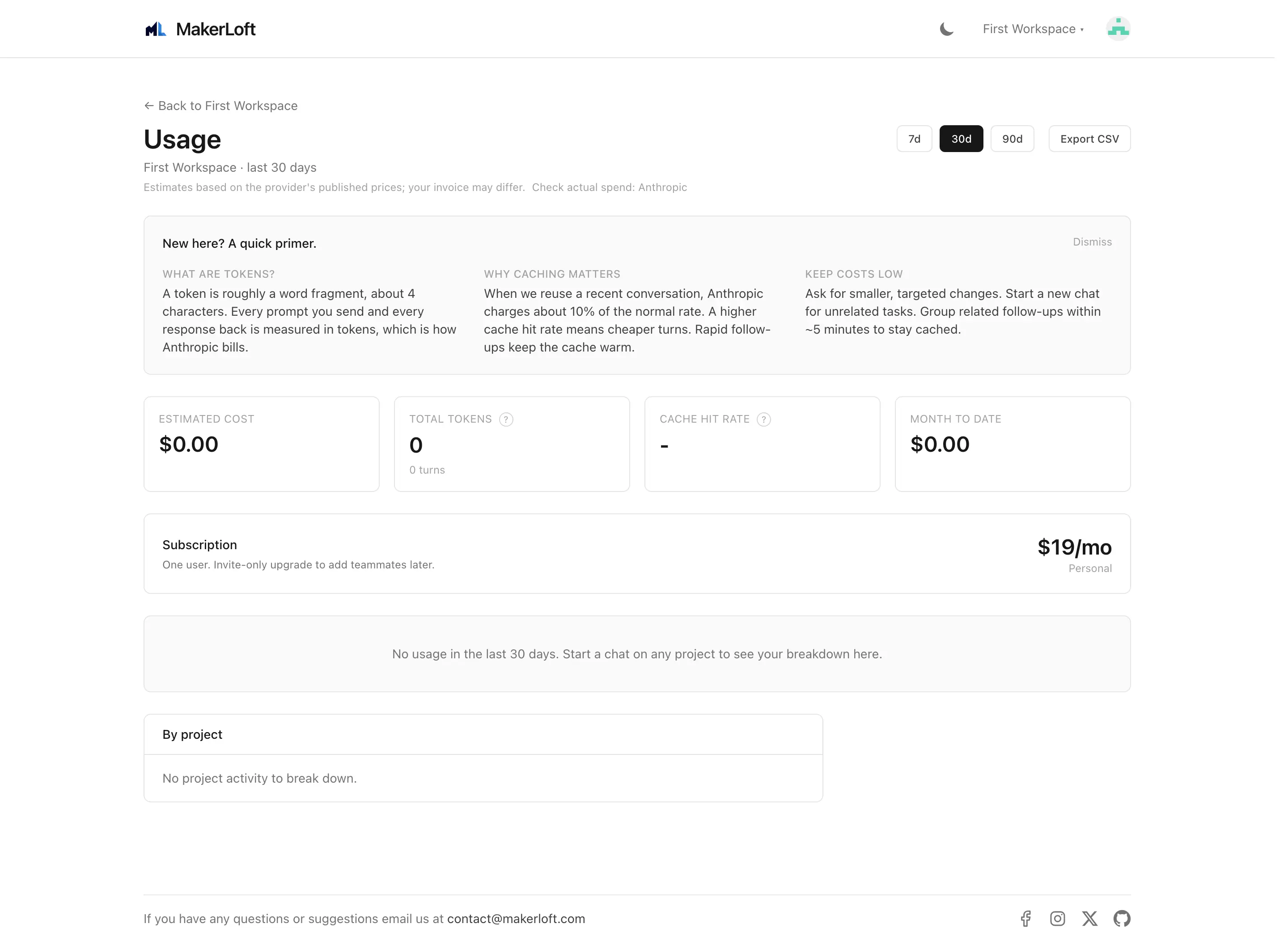
Usage
Reads of token spend, cache savings, and project-level cost. Pick a window (7, 30, or 90 days), drill down to a project, or export to CSV. The dashboard updates within a few minutes of each chat turn.
See also: Billing and usage · Usage page.