On this guide
Get started
Manage
Deployment targets
A deployment target is one running copy of your project: production, staging, a per-customer environment. Targets deploy to your DigitalOcean account; we orchestrate, you own the running app.
Creating a target
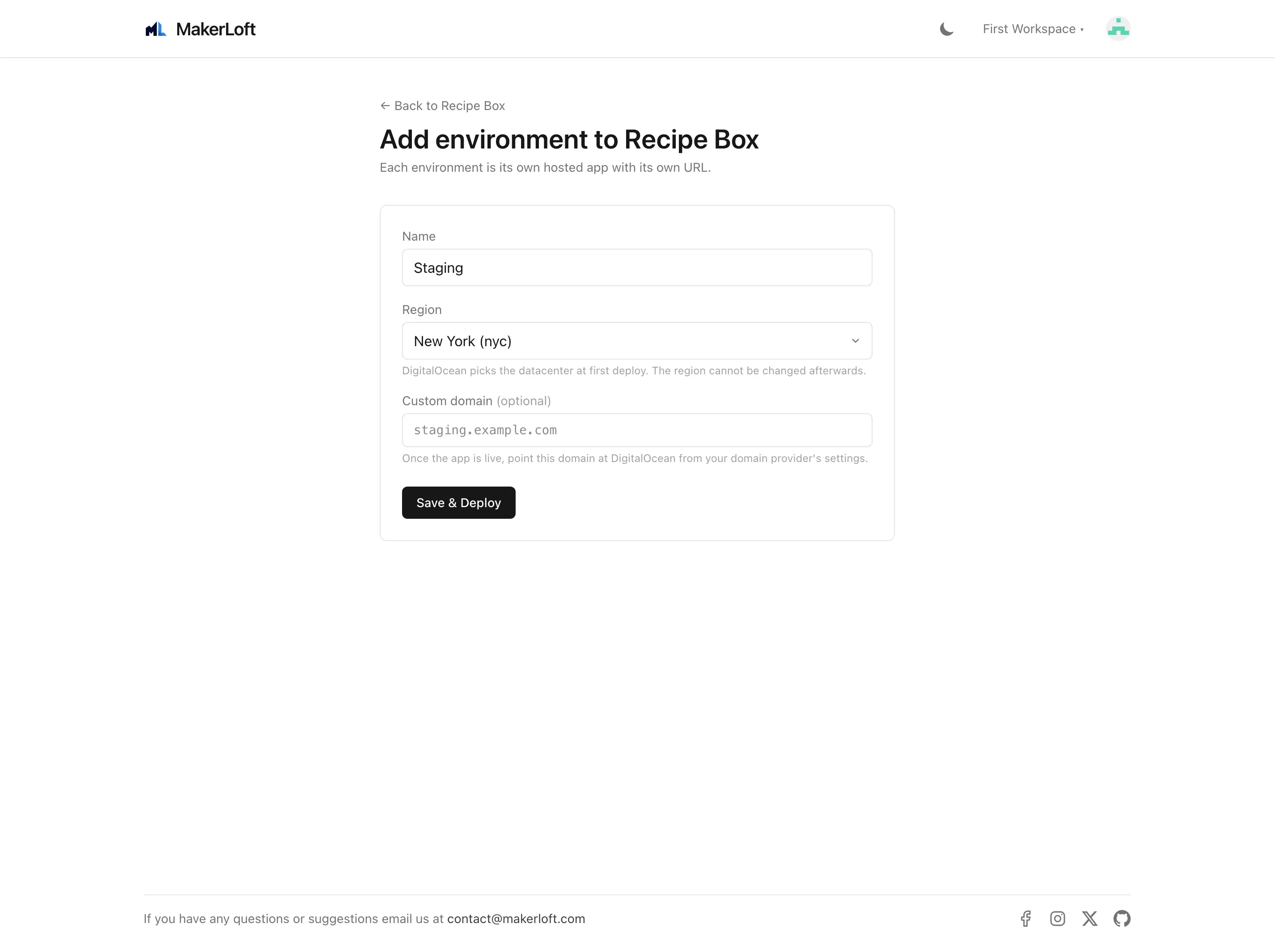
From the project page, click "Add target". Pick a name (production, staging, anything short). The slug is generated from the name. The target is created in Draft state until you fill in hosting and click Deploy.
Target states
Every target carries a status that you can read at a glance from the project page card.
- Draft. Created but not deployed. Fill in hosting, click Deploy.
- Provisioning. The hosting app and resources are being created. Usually a few minutes; the card shows a spinner with the current step.
- Active. The deployed app is live. The card shows the URL and the time of the last deploy in green.
- Error. Something went wrong on the last deploy. The alerts panel has the details. Fix and try again.
- Host missing. The hosting app on DigitalOcean was deleted outside MakerLoft (someone removed it from the DigitalOcean console, or the credential was revoked). Click Reprovision to create it again.
Each card carries an action button matching its current state: Deploy on Draft, Cancel on Provisioning, Re-deploy on Active, Retry deployment on Error, Re-provision deployment on Host missing. Deploy and Re-deploy both start a new deploy from the current branch tip; Re-provision deployment re-creates the missing DigitalOcean app from scratch.
Hosting
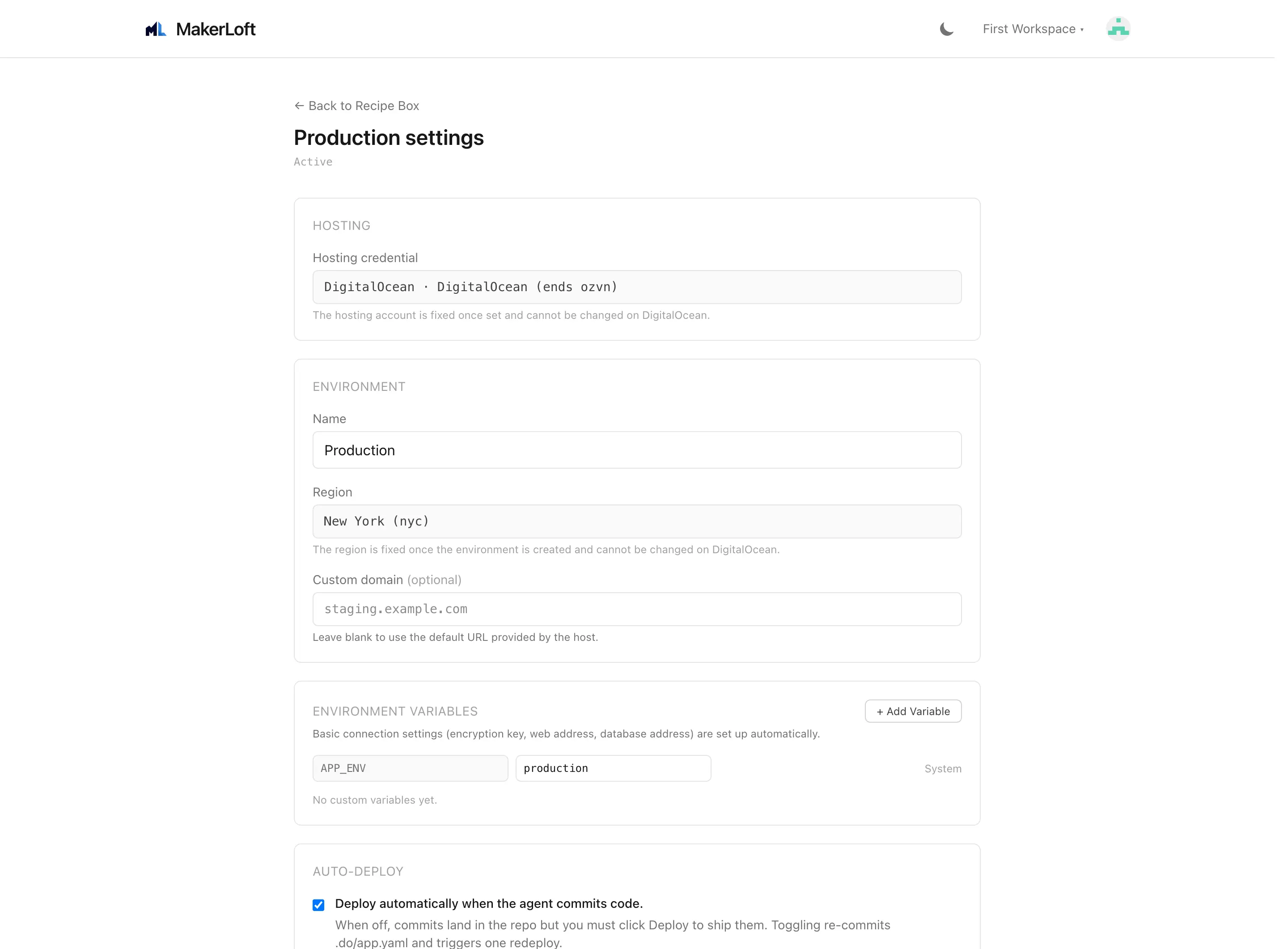
Choose which DigitalOcean credential the target uses, pick a region, and (optionally) attach a custom domain.
- Hosting credential. The DigitalOcean credential connected to this workspace. If you have multiple connected accounts, pick which one this target uses.
- Region. Pick a region close to your users; the dropdown lists every DigitalOcean region (NYC, AMS, SGP, and the rest). Changing region after the first deploy requires re-provisioning.
- Custom domain. Optional. Add the domain you want, point a CNAME at the value MakerLoft shows you, and certificates are issued automatically.
Environment
Add the environment variables your project needs. The agent typically fills the obvious ones during a chat turn (API keys for libraries it installs); use this section for values that only you have (a Stripe production key, an SMTP password).
Mark a variable as secret to hide its value from the screen and from the agent. Secrets stay encrypted; once set you can replace the value but never read it back.
Database
Tick "Provision a managed database" to add a MySQL database to this target. We pick a small instance to keep cost low; you can resize from the DigitalOcean console once you outgrow it.
Removing a database is destructive. The Delete database checkbox asks you to type the target slug to confirm; the database and every row in it are gone.
Storage
Object storage (S3-compatible) for file uploads. Tick to provision; untick and confirm to remove. Storage costs are by the GB-month and are usually a few cents.
Scheduled tasks
Tick "Provision scheduled tasks" if your project will run something on a schedule (a daily email, a nightly cleanup). The schedule itself is defined inside your code; this toggle just adds the runner.
Background tasks
Tick "Provision background tasks" if your project sends email, processes uploads, or does anything that takes longer than a single web request. Pick the engine: Database is fine to start with (no extra cost), Redis is faster but adds a small monthly fee.
Removing Redis is destructive (queued tasks waiting in Redis are lost). The Delete Redis checkbox asks you to type the target slug to confirm.
Deployment
Auto-deploy on commit. When on, every commit triggers a deploy. When off, you click Deploy by hand each time. Auto-deploy is good for production once a project has settled; turn it off when you are doing risky work.
Load live state. Force a refresh of the target status from DigitalOcean. Useful if you suspect the target card is showing stale info.
Danger zone
Delete the target. Several confirmation checkboxes let you choose what to also remove: the App Platform app, the database, object storage, Redis. Read each one carefully; everything you tick is deleted permanently.